Introduction
Every Monday morning, your team waits for the same dashboard, and only one person knows how to rerun it. If that person is out, the numbers don't show up. The solution is simple: put an AI dashboard on a schedule so it refreshes every Monday without anyone rerunning it. But how do you do that?
You build the dashboard once, then tell your AI tool to rerun it on a schedule. The tool runs the full pipeline (query, logic, and charts) in the cloud, so a fresh version is waiting before anyone opens their laptop.
In this guide, you'll learn your options for scheduling a dashboard refresh, how to set one up step by step in PromptQL, and how to keep it secure and catch bad data before your team sees it.
Key Takeaways
Automating a Monday dashboard refresh comes down to six steps:
- Build the dashboard once and check the numbers: a dashboard that's wrong on demand will be wrong on a schedule too.
- Ask for a weekly rerun: in PromptQL, you set the schedule in plain language, such as "rerun this every Monday at 9am Pacific."
- Confirm the schedule: check that the dashboard shows its cadence, next run, and last run.
- Add custom logic: ask for Monday-specific metrics like week-over-week growth, and let the AI write and run the code.
- Lock down access: make sure queries run with the right person's permissions and that external actions need approval.
- Add alerts: get notified only when the data looks stale or a metric crosses a threshold.
Your Options at a Glance
There's more than one way to refresh a dashboard on a schedule. Here's how the common approaches compare:
| Approach | How it works | Best for | Key trade-off |
|---|
| PromptQL scheduled artifact | Ask in plain language to rerun a dashboard on a cadence, such as every Monday at 9am | Teams that want data access, logic, charts, and scheduling in one thread | Your dashboard lives in PromptQL rather than your BI tool |
| Cloud function on a timer | Run a refresh function, such as an AWS Lambda function, on a cron or rate schedule with Amazon EventBridge Scheduler | Multi-tool stacks where the dashboard is one output | You build and maintain the function, permissions, and dashboard code yourself |
| Scheduled notebook | Run a Hex app or Deepnote notebook hourly, daily, weekly, or monthly | Analysts who own the logic and work cell by cell | Custom schedules need a paid team plan in both tools |
| CI pipeline | Run a dashboard-building workflow on a cron schedule in GitHub Actions or GitLab CI | Teams that already manage reporting as code | GitHub runs schedules in UTC by default and can delay them at busy times |
| BI tool scheduler | Refresh extracts on a schedule in Tableau, or send recurring dashboard deliveries in Looker | Enterprise teams with data already modeled in the BI tool | On Tableau Server, only administrators create schedules |
Step 1: Build the Dashboard Once and Check the Numbers
Start with a single question in a PromptQL thread. If the dashboard isn't right when you're watching, it won't get better on a timer.
Ask the way you'd ask a colleague, but be specific about the data source and date range. For example: "Pull revenue from our warehouse for the last complete week, group it by region, and show it as a bar chart."
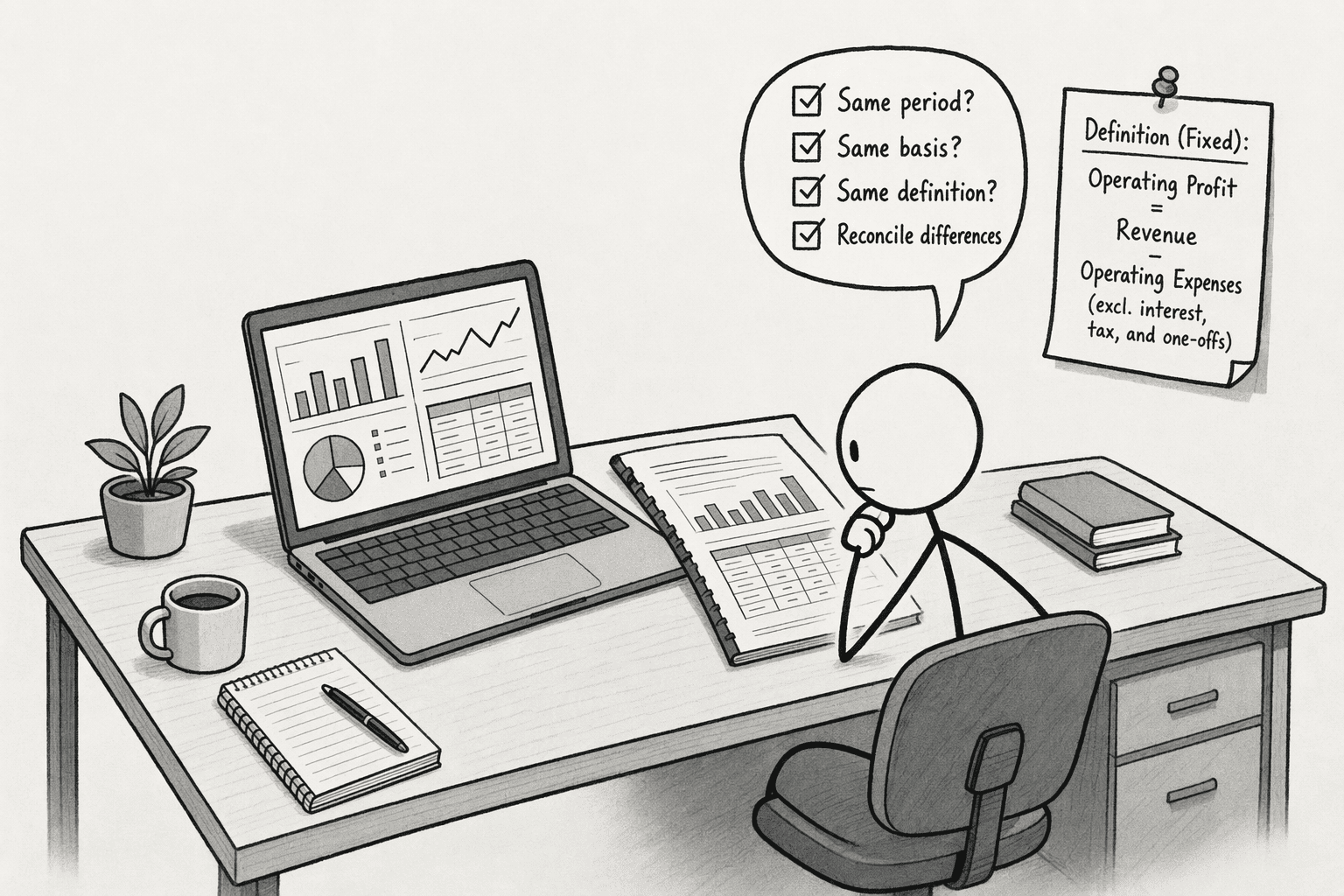
Before you schedule anything:
- Compare the totals with a number you already trust, such as last week's finance report.
- Ask PromptQL to explain how it calculated the totals, so you can check the logic.
- Fix the definition once (for example, which revenue field counts) so every future run uses it.
Step 2: Ask PromptQL to Rerun It Every Monday
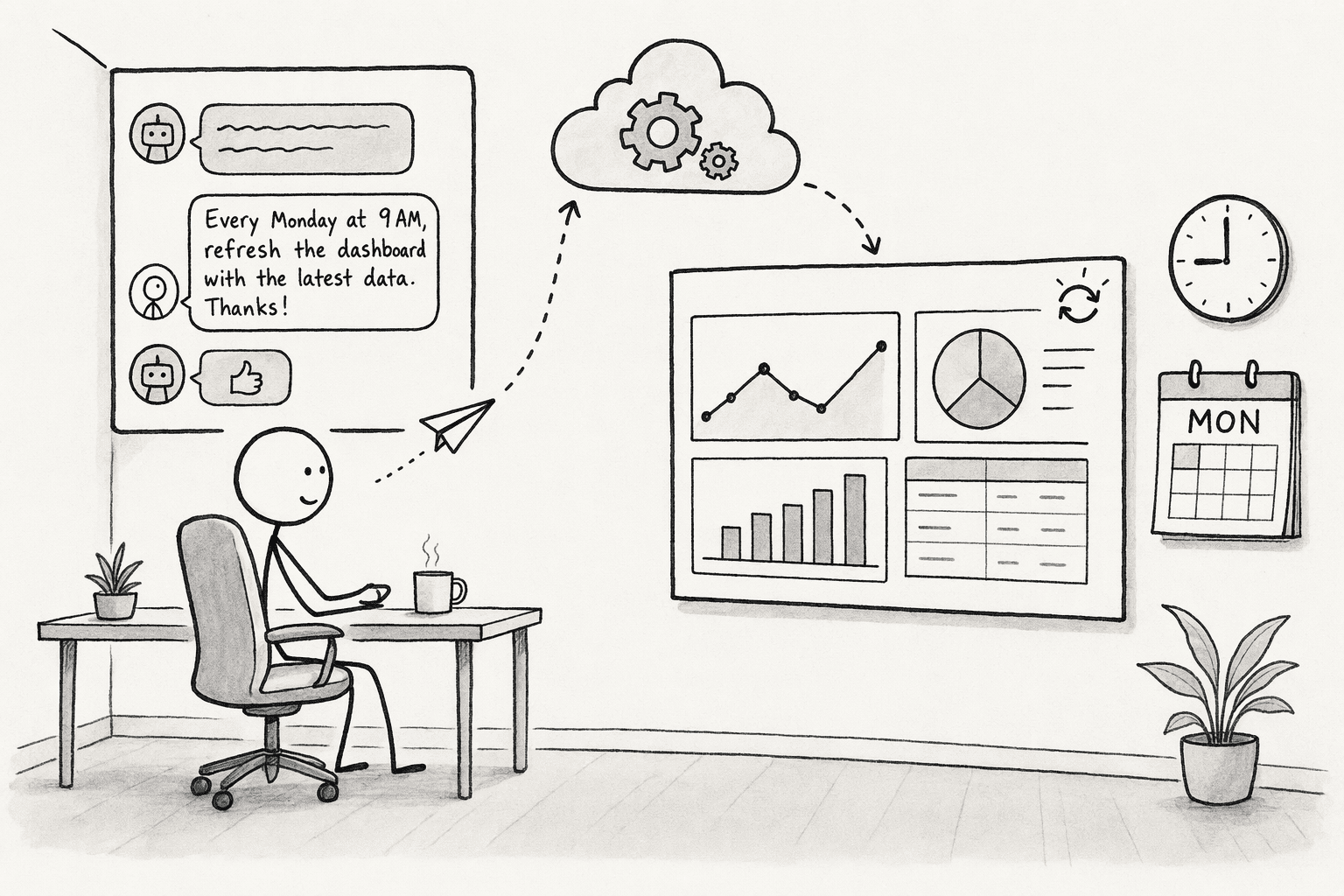
Once the dashboard is right, schedule it in the same thread. You don't need a scheduler tool or a cron expression. Tell PromptQL when to run it, for example "rerun this every Monday at 9am Pacific." It accepts plain language, and you can still use a cron string if you prefer.
Name the time zone in your request so the dashboard refreshes before your team starts work, wherever they are.
Scheduled work runs in the cloud, so the refresh still happens while nobody is online, with no cron jobs to maintain and no laptop left open.
Step 3: Confirm the Schedule Is Set
After you set the schedule, PromptQL attaches a schedule pill to the dashboard showing its cadence, the next run, and the last run. Anyone in the thread can see that the dashboard is on a timer.
Here's what to know about scheduled runs:
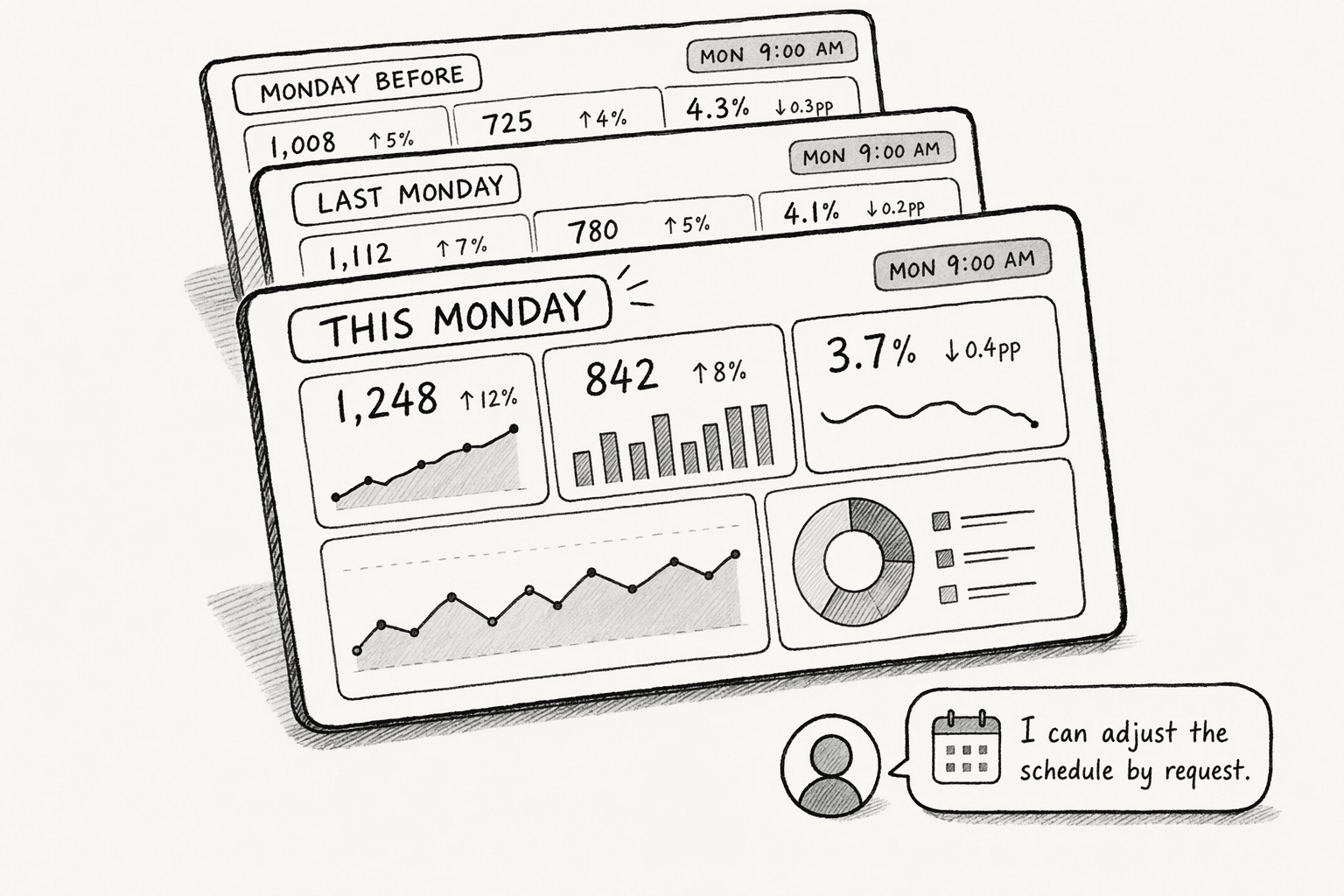
- Each run creates a new version: earlier versions stay in place, so you can compare this Monday's numbers with last Monday's.
- Changes work the same way: to change the cadence or pause it, just ask, for example "skip next week" or "move this to Thursdays."
- Your team can see it's scheduled: anyone in the thread can see the dashboard is on a timer and open the latest version instead of asking someone to rerun it.
Step 4: Add Custom Logic for Monday-Specific Metrics
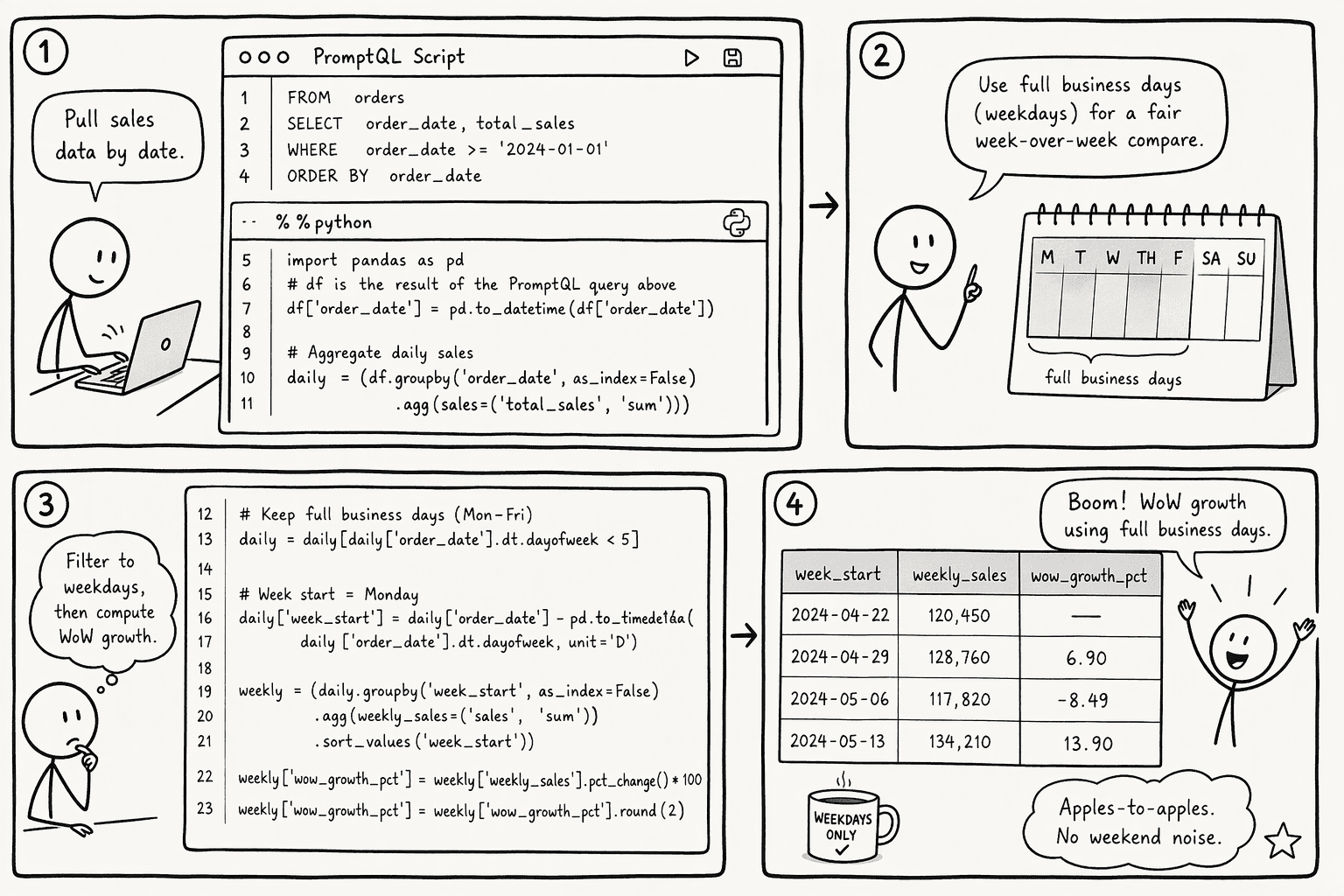
Monday reports often need something extra, such as week-over-week growth or a comparison that counts only full business days. Ask for it in the thread, for example: "Add week-over-week revenue growth, counting only full business days."
PromptQL writes and runs the code for you. According to our security model, all Python runs inside a WebAssembly sandbox with no host filesystem or network access, using only the standard library and a vetted set of packages: numpy, pandas, openpyxl, and reportlab. Credentials are injected at runtime and never exposed to the model.
Once you add the logic, it becomes part of the dashboard and runs on every scheduled refresh.
Step 5: Set Up Permissions, Approvals, and Audit Logs
A scheduled dashboard still needs the right guardrails. Here's how PromptQL handles them:
- Permissions: each query runs as the person who asked, and permissions are enforced at the data layer, not inside the model. Data outside a person's access never enters the agent's context.
- Approvals: writes and external calls require approval, with a plain-language summary of what's about to happen. If you want the report pushed to Slack or emailed, someone signs off before it goes out.
- Audit logs: audit logs show what was accessed and by whom.
- Data location: on Enterprise, PromptQL runs single-tenant in the region you choose, either in PromptQL's cloud or in your own AWS, GCP, or Azure account, with private connectivity to your data.
Step 6: Add Alerts for Stale Data and Anomalies
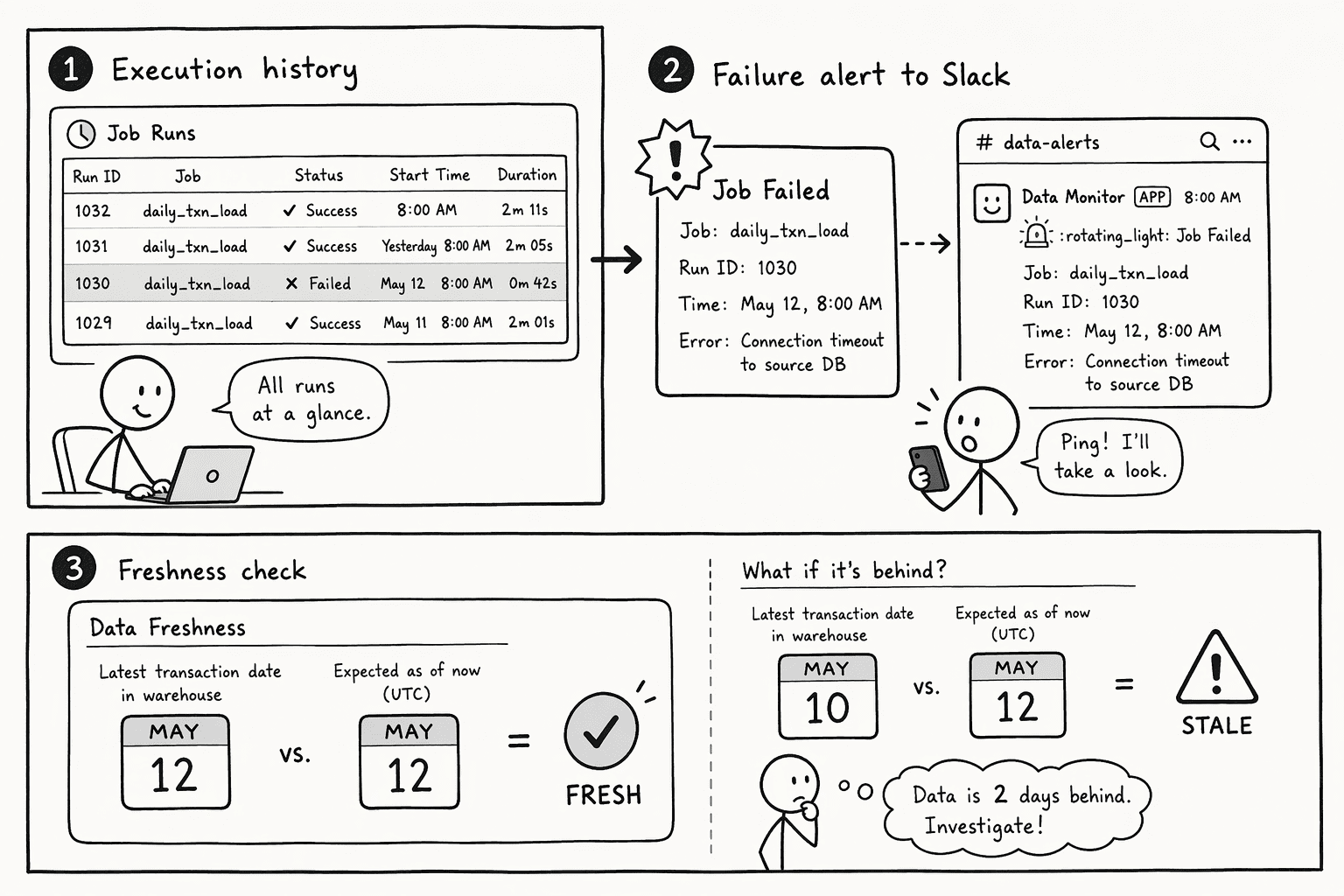
A schedule that runs quietly on bad data is worse than no schedule at all. A scheduled dashboard runs whether or not anything changed, so add alerts to flag the runs that matter.
In PromptQL, an alert is a natural-language condition you attach to a dashboard. PromptQL checks the condition on every run, scheduled or manual, and posts in the dashboard's thread only when it trips.
Useful alerts for a Monday dashboard include:
- Freshness: "Alert me if the latest transaction date is older than last Sunday."
- Thresholds: "Alert me if any region's revenue drops more than 10% week over week."
- Gaps: "Alert me if any region returns no data."
You can tighten, adjust, or turn off an alert the same way you set it, by asking in the thread.
Conclusion
A Monday dashboard shouldn't depend on one person remembering to rerun it. Build it once, check the numbers, ask for a weekly rerun, and add alerts so you only hear about it when something looks wrong. Your team gets fresh numbers every Monday, and nobody has to press refresh.
To set up your first scheduled dashboard in PromptQL, book a demo.
Frequently Asked Questions
How do I schedule an AI dashboard to refresh every Monday?
Build the dashboard once and check its numbers, then tell your AI tool when to rerun it. In PromptQL, you ask in the dashboard's thread, for example "rerun this every Monday at 9am Pacific," and it attaches a schedule showing the next and last run. No one has to rerun it manually.
Do I need to write a cron expression?
No. PromptQL accepts schedules in plain language, so you can say "every Monday at 9am Pacific" instead of writing a cron string. If you prefer cron, you can still use one. Other approaches, such as CI pipelines or cloud functions, typically use cron or rate expressions.
How do I know a scheduled refresh actually worked?
Check the dashboard's schedule pill, which shows the last run and the next one. Each run creates a new version, so you can compare results week to week. Add a freshness alert, such as flagging data older than last Sunday, so a stale run doesn't go unnoticed.
What's the difference between a schedule and an alert?
A schedule reruns the dashboard on a cadence, whether or not anything changed. An alert is a condition you attach to the dashboard, and it only posts when the condition trips, such as a 10% drop in revenue. Together, they keep your dashboard fresh without flooding your team with updates.
How do I keep a scheduled AI dashboard secure?
Make sure queries run with real user permissions instead of a shared admin account, keep credentials away from the model, and require approval before reports go to external channels. In PromptQL, permissions are enforced at the data layer, credentials are injected at runtime, and writes and external calls need approval.
Sources
- Accurate AI intelligence without data prep — transform your enterprise’s AI story - promptql.io
- PromptQL | Architecture: the stable stack for AI - promptql.io